
Google Antigravity is an agentic development platform where you have your familiar code editor along with a powerful agent on the side. In today’s post, I want to show you some tips and tricks for the code editor.
Setup and Extensions
In a typical setup, you’d have the editor, the terminal, and the agent visible:
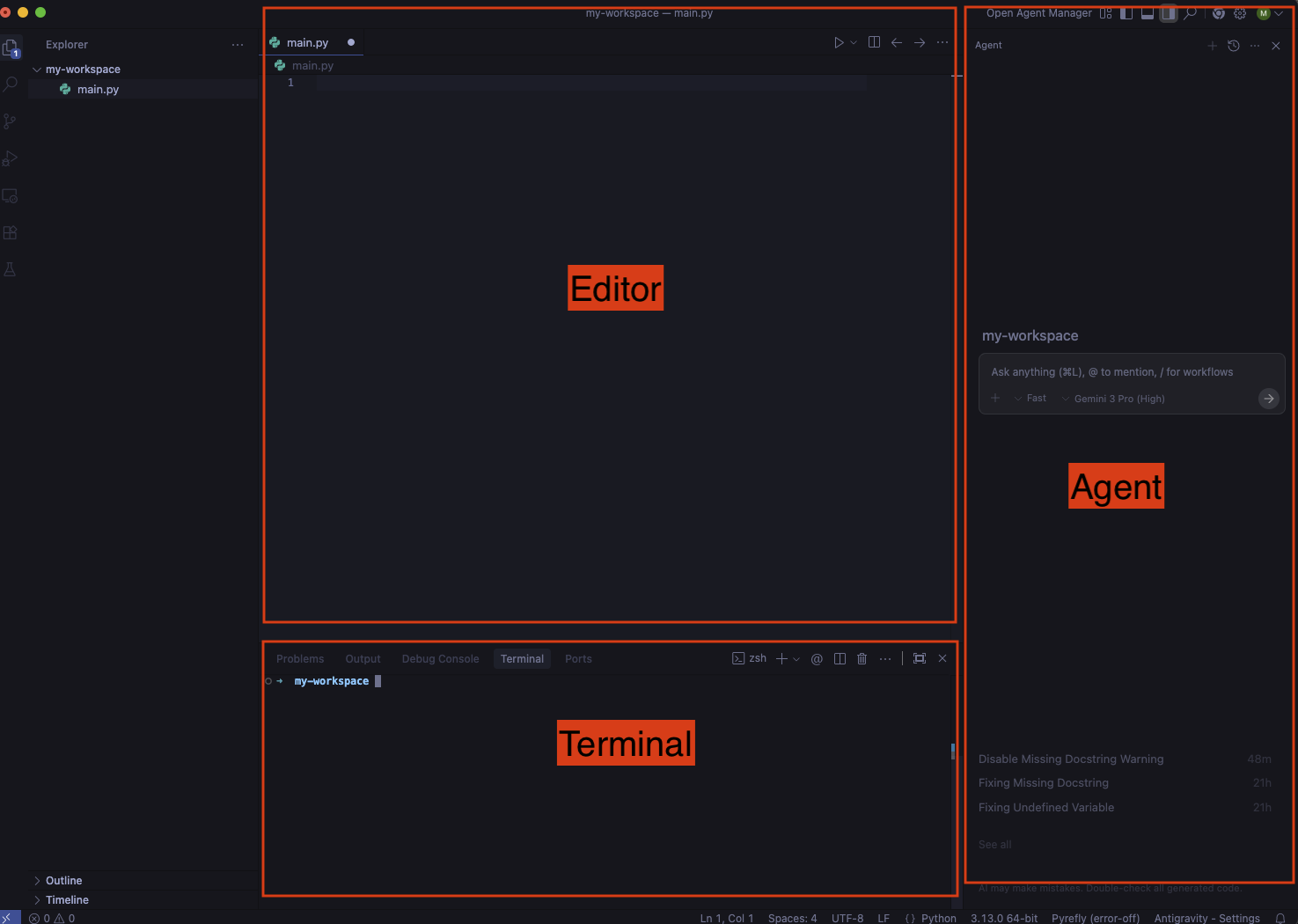
If this is not the case, you can toggle terminal and agent panels as follows:
- To toggle the terminal panel, use the
Ctrl+`shortcut. - To toggle the agent panel, use the
Cmd+Lshortcut.
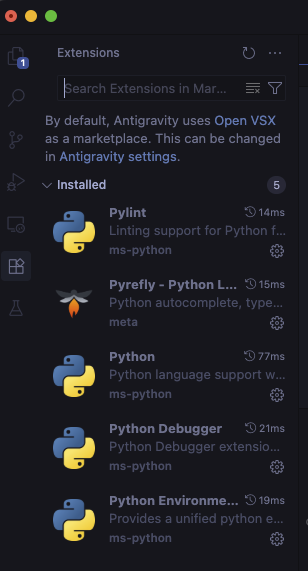
Additionally, Antigravity can install some extensions during setup but depending on the programming language you’re using, you probably need to install more extensions.
For example, for Python development, these are the extensions I have installed:
Editor
Let’s see how the editor can help us with our coding.
Auto-complete
As you type code in the editor, a smart auto-complete kicks in that you can simply tab in:

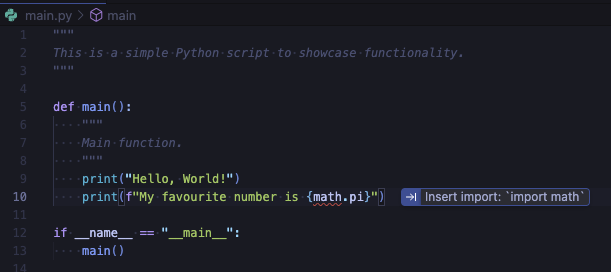
Tab to import
You get tab to import suggestion to add missing dependencies:
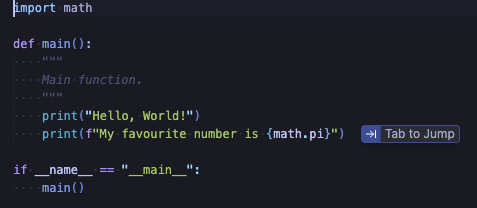
Tab to jump
You get tab to jump suggestion to get the cursor to the next logical place in the code:
Commands
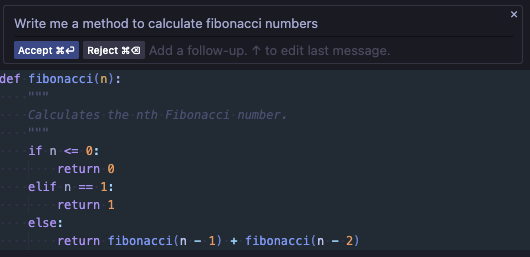
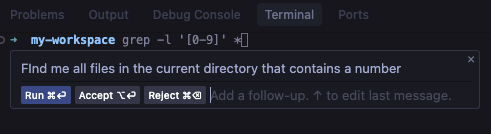
You can trigger commands with Cmd + I in the editor or terminal for inline completions using natural language.
In the editor, you can ask for a method to calculate Fibonacci numbers and then accept or reject it:
In the terminal, you can get terminal command suggestions:
Agent Side Panel
From the editor, you can toggle the agent side panel in multiple ways.
Manual open
You can manually toggle the agent panel with the Cmd + L shortcut and start asking questions about
the code.
You can start asking questions, use @ to include more context such as files, directories, MCP servers, or use / to refer
to a workflow (a saved prompt):
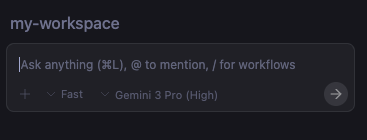
You can also choose between two conversation modes: Fast or Planning :

Fast is recommended for quick tasks whereas Planning is recommended for more complex tasks where the agent creates a plan that you can approve.
You can also choose different models for the conversation:

Explain and fix
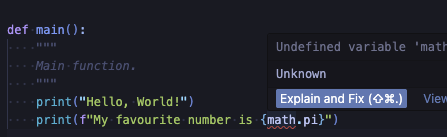
Another way of triggering the agent is to hover over a problem and selecting Explain and fix:
Send problems to agent
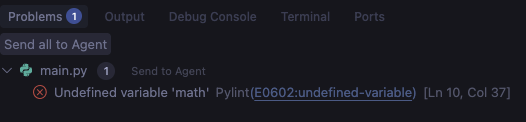
You can also go to the Problems section and select Send all to Agent to get the agent to try to fix those problems:
Send terminal output to agent
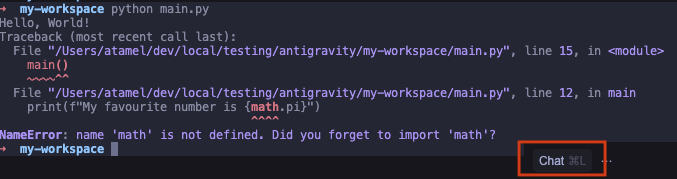
You can even select a part of the terminal output and send it to the agent with Cmd + L:
Conclusion
In this blog post, we explored the Antigravity code editor in more detail and showed you different ways the editor and the agent can help with your coding. For more information, check out the documentation and our codelab: