Coming to work every morning often means facing a wall of unread Google Chat messages from the night before across colleagues in different time zones. Skimming through every space and thread to catch up takes time.
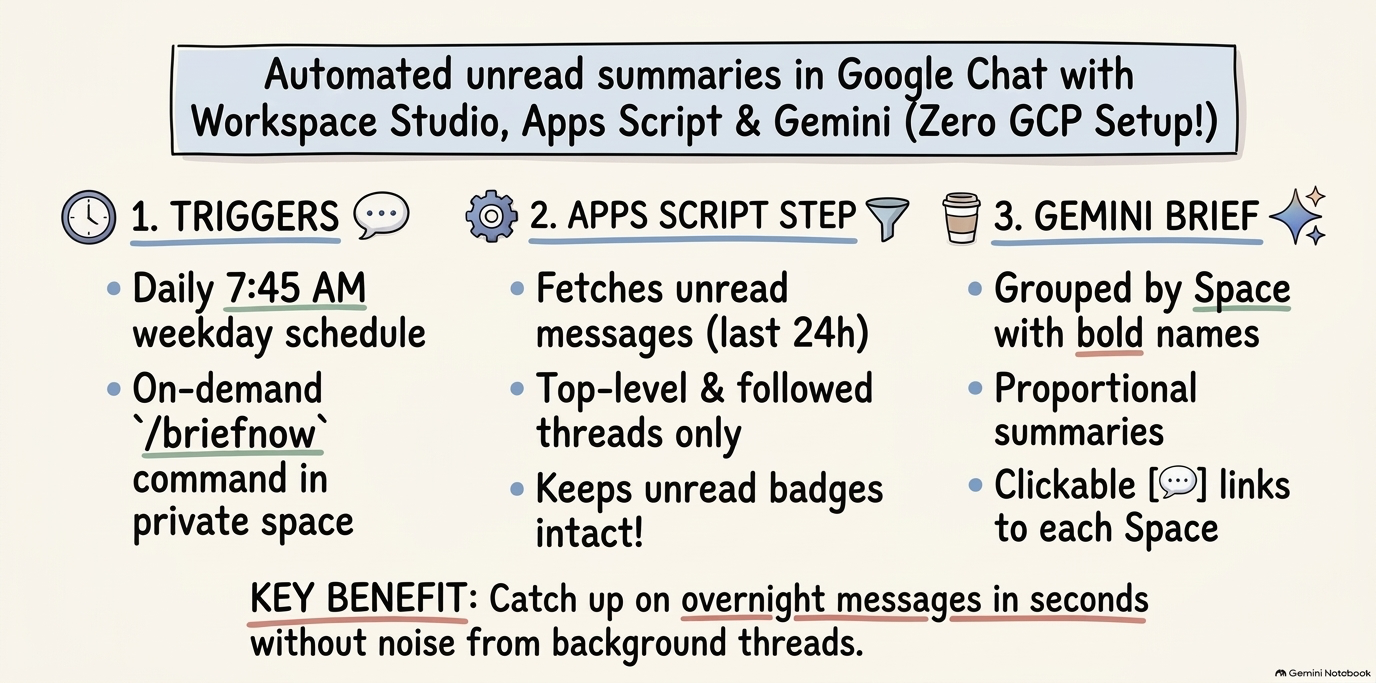
To make my mornings easier, I built an automated Unread Messages Brief directly inside Google Chat—powered by Google Workspace Studio, Gemini, and a Google Apps Script Custom Step (with zero Google Cloud Console setup required). Everything was built with the help of Gemini 4 and Antigravity, which made figuring out the Google Chat read-state API nuances and wiring up the Workspace Studio custom step effortless.
In this post, I’ll share how it works, the design decisions behind it, and how you can set it up for yourself using my google-chat-unread-brief repository.
Why not just use Google Chat’s “Ask Gemini” tab?
At this point, you might be wondering: Can’t you just use the built-in “Ask Gemini” tab in Google Chat?
I had the same question and gave it a try, but ran into two main limitations:
- Too much noise from background threads: When you ask the built-in Ask Gemini tab to summarize your unread messages, it includes all unread messages across every background thread—even threads you aren’t following. I wanted a brief that filters strictly for top-level unread messages and messages from threads I actively follow.
- No scheduled summaries: There is no way to schedule an automatic daily summary in the Ask Gemini tab so that it’s waiting for you when you start your day.
What does Unread Messages Brief do?
With Google Workspace Studio and a small Google Apps Script custom step, the workflow gives you:
- Daily 7:45 AM Scheduled Brief: Automatically summarizes your unread
messages from the last 24 hours (top-level messages and threads you follow,
without marking them as read) and posts a clean bulleted brief with
clickable space links into your private
Unread Messages Briefspace each weekday morning. - On-Demand Trigger (
/briefnow): Type/briefnowin yourUnread Messages Briefspace anytime during the day to generate a fresh summary on demand.
Let’s look at how to set it up step by step.
Step 1: Create your private space in Google Chat
First, create a dedicated space in Google Chat where your briefs will be posted:
- Open Google Chat.
- Click New chat (
+) → Create a space. - Name the space
Unread Messages Brief(keep it private with just yourself).
Step 2: Set up & install the Apps Script Custom Step
While Google Workspace Studio has built-in steps for Google Chat and Gemini,
we need a custom step in Google Apps Script to query the Google Chat API’s read
state (getSpaceReadState and getThreadReadState) and fetch only the unread
top-level messages and followed threads without marking them as read.
ℹ️ Note
Why isn’t there a “Mark all unread messages as read” command? While reading unread state (
spaces.list,messages.list,getSpaceReadState,getThreadReadState) works out of the box with Apps Script’s default project, the Google Chat API blocks write calls (updateSpaceReadState) unless you create, link, and configure a standard Google Cloud project in the Cloud Console. Keeping it read-only avoids any Google Cloud project setup.
Here’s how to set up and install the custom step:
- Go to script.google.com and click New
project (name it
Unread Messages Brief). - Enable the manifest file:
- Click Project Settings (⚙️ icon on the left sidebar).
- Check the box “Show ‘appsscript.json’ manifest file in editor”.
- Copy the files from my
google-chat-unread-brief
repository into the editor:
- Click Editor (
< >icon on the left sidebar). - Open
appsscript.jsonand replace its contents withappsscript.json. - Open
Code.gsand replace its contents withCode.gs. - Click Save (💾).
- Click Editor (
- Authorize the Script in Apps Script:
- In the top toolbar dropdown (next to Run / Debug), select
onExecuteFetchUnreadand click Run. - Approve the Google OAuth permissions prompt when asked.
- In the top toolbar dropdown (next to Run / Debug), select
- Install Test Deployment for Workspace Studio:
- Click Deploy (top right) → Test deployments.
- Next to Application(s): Google Workspace Add-on, click Install.
- Click Done.
Let’s take a quick look at what’s happening under the hood in both files.
First, appsscript.json declares the Google Chat Advanced Service (Chat v1),
read-only OAuth scopes, and exposes a custom workflow action (Fetch Unread Chat Messages) to Google Workspace Studio with two inputs (excludeSpaceName
and maxLookbackHours) and one output (unreadMessagesText):
"flows": {
  "workflowElements": [
    {
      "id": "fetch_unread_chat_messages",
      "state": "ACTIVE",
      "name": "Fetch Unread Chat Messages",
      "description": "Fetches unread Google Chat messages across your spaces with space links, without marking them as read.",
      "workflowAction": {
        "inputs": [
          {
            "id": "excludeSpaceName",
            "description": "Name or Space ID of your Unread Messages Brief space to exclude from the summary (optional)",
            "cardinality": "SINGLE",
            "dataType": { "basicType": "STRING" }
          },
          {
            "id": "maxLookbackHours",
            "description": "Maximum hours to look back for unread messages (e.g. 24)",
            "cardinality": "SINGLE",
            "dataType": { "basicType": "INTEGER" }
          }
        ],
        "outputs": [
          {
            "id": "unreadMessagesText",
            "description": "Formatted unread messages and space links ready for Gemini summarization",
            "cardinality": "SINGLE",
            "dataType": { "basicType": "STRING" }
          }
        ],
        "onConfigFunction": "onConfigFetchUnread",
        "onExecuteFunction": "onExecuteFetchUnread"
      }
    }
  ]
}
Second, Code.gs implements the configuration UI (onConfigFetchUnread), the
execution handler (onExecuteFetchUnread), and the core fetchUnreadChatData
function. For each active space within the lookback window, it checks your
space-level lastReadTime and then inspects each thread’s lastReadTime so
that only unread top-level messages and replies in threads you follow are
included:
// Get the user's space-level read state
const readState = Chat.Users.Spaces.getSpaceReadState(
  `users/me/${space.name}/spaceReadState`
);
const spaceLastReadMs = new Date(readState.lastReadTime).getTime();
const lastActiveMs = new Date(space.lastActiveTime).getTime();

// Skip if the space is already read
if (lastActiveMs <= spaceLastReadMs) continue;

// Fetch candidate messages newer than spaceLastReadTime (within lookback window)
const msgResponse = Chat.Spaces.Messages.list(space.name, {
  filter: `createTime > "${effectiveSinceIso}"`,
  pageSize: 40
});

// Filter to ONLY top-level messages + replies in new or followed threads
for (const m of candidateMessages) {
  const trs = Chat.Users.Spaces.Threads.getThreadReadState(
    `users/me/${m.thread.name}/threadReadState`
  );
  const threadLastReadMs = (trs && trs.lastReadTime)
    ? new Date(trs.lastReadTime).getTime()
    : null;

  const isTopLevel = !m.threadReply;
  const isReplyToNewUnreadThread = newTopLevelThreads.has(m.thread.name);
  const isFollowedThread = threadLastReadMs !== null && threadLastReadMs > spaceLastReadMs;

  if (isTopLevel || isReplyToNewUnreadThread || isFollowedThread) {
    // Format sender, message text, and space link for Gemini
  }
}
Finally, onExecuteFetchUnread packages the formatted messages and space links
into the unreadMessagesText output variable using AddOnsResponseService so
the next step in the flow can pass it directly to Gemini.
Step 3: Build the on-demand flow in Google Workspace Studio
Next, open Google Workspace Studio (refresh the page if it was already open so your newly installed Unread Messages Brief custom step appears).
💡 Tip
Google Workspace Studio displays each output variable using its
descriptionfromappsscript.json(for example,unreadMessagesTextappears in the+ Variablespicker underFetch Unread Chat Messages→Formatted unread messages and space links ready...).
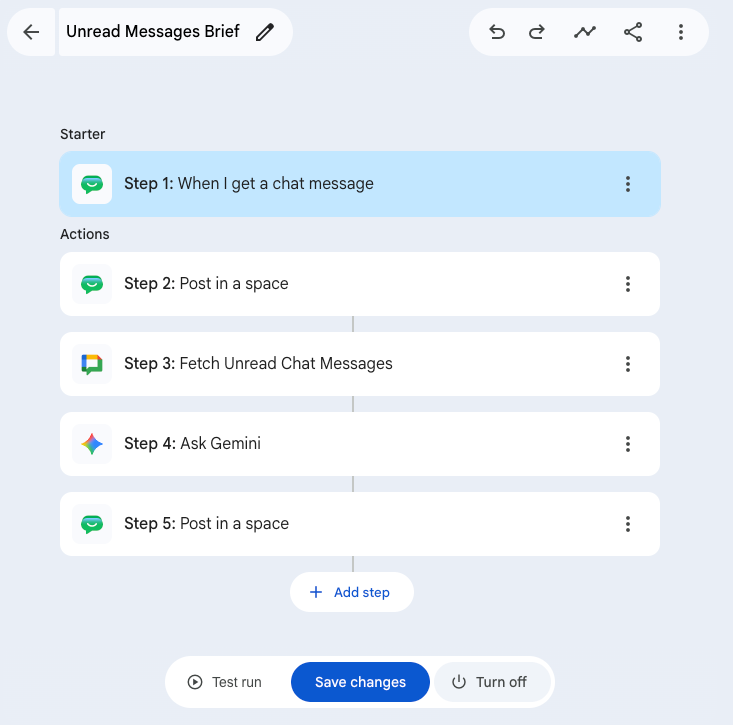
Create a new flow named Unread Messages Brief with the following steps:
- Starter (
Chat → When I get a chat message):- Conversation type: Choose Spaces & named group DMs.
- Spaces: Select
Unread Messages Brief. - Enter
/briefnowin the “Message has” field and choose “Match text exactly”.
- Step 2 (
Chat → Post in a space— Progress Indicator):- Select your
Unread Messages Briefspace and paste:⏳ _Scanning unread messages and generating your brief. Please wait..._
- Select your
- Step 3 (
Custom Step → Fetch Unread Chat Messages):- Click + Add step → scroll to Unread Messages Brief → select Fetch Unread Chat Messages.
- Set Exclude Space Name or ID to
Unread Messages Brief. - Set Max Lookback Window (Hours) to
24.
- Step 4 (
Ask Gemini— Summarize):- Add an Ask Gemini step with the following prompt:
Provide a high-level summary of my unread Google Chat messages below, formatted as a bulleted list grouped by Space. - If the input says NO_UNREAD_MESSAGES, just reply: "🎉 You're all caught up! No unread Google Chat messages." - Format each Space as a bullet point starting with the Space name in bold (* **Space Name**:) followed by an overall summary whose length is proportional to the discussion (keep it brief for 1–2 messages, and more detailed for longer discussions). - Focus on the topic and outcome rather than listing who said what. Only mention a person's name (in bold, e.g. **Aaron**) when attribution is genuinely useful—such as a specific announcement, question, or action item—and omit names entirely for general group discussions or quick updates. - At the end of each Space's bullet item, include a clickable chat icon linked to its exact Link from the input: [💬](https://chat.google.com/room/...). - Do not add any concluding remarks or trailing blank lines after the last bullet item. Unread Messages Data: - On the last line under
Unread Messages Data:, click+ Variablesand selectStep 3: Fetch Unread Chat Messages→Formatted unread messages and space links ready....
- Add an Ask Gemini step with the following prompt:
- Step 5 (
Chat → Post in a space):- Select your
Unread Messages Briefspace and format the message with the title☕ *Unread Messages Brief*, followed by theStep 4: Ask Gemini→Content created by Geminivariable, and the footer💡 _/briefnowto refresh summary_.
- Select your
- Click Turn on.
Here’s what the complete on-demand flow looks like:
Step 4: Test the flow & schedule the daily 7:45 AM brief
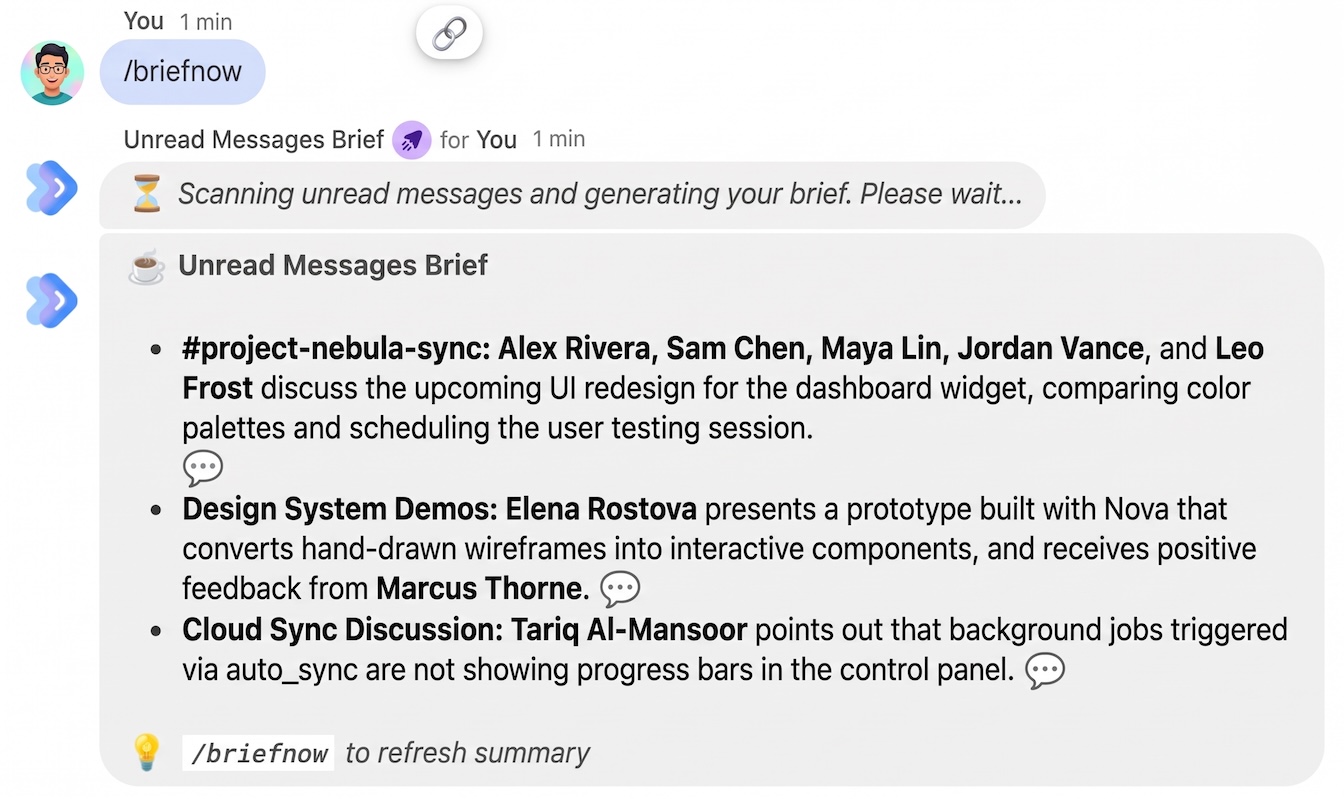
To test the flow, mark any conversation in Google Chat as unread, head over to
your Unread Messages Brief space, and send /briefnow.
Within seconds, you’ll see the progress indicator followed by your ☕ Unread
Messages Brief with bold space names, high-level topic summaries, and a
clickable 💬 link at the end of each item that jumps straight to that
space—while all your unread badges in the sidebar remain intact:
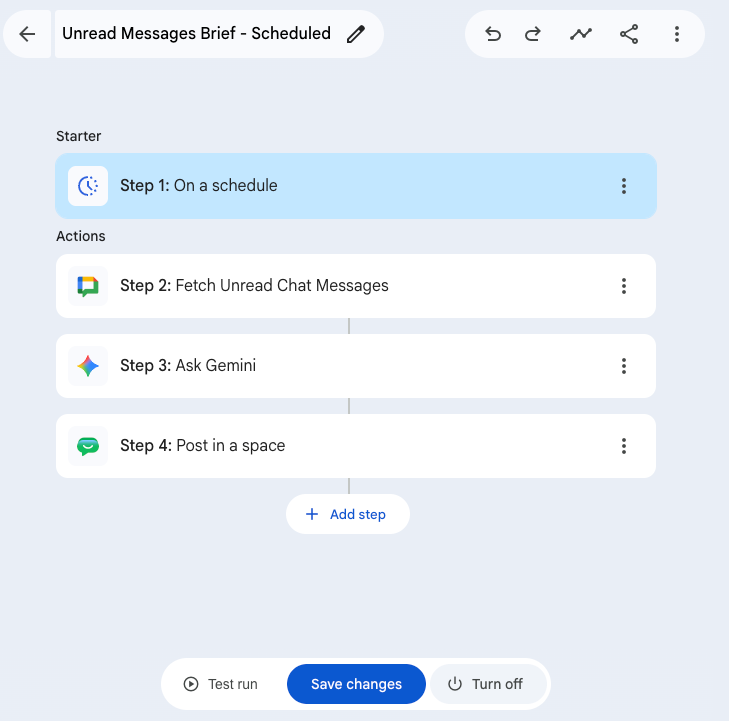
Once your /briefnow flow is working, you can easily create the daily morning
schedule by making a copy of the flow (since Google Workspace Studio only
allows one Starter per flow):
- In your My flows list, click More (
⋮) next toUnread Messages Briefand select Make a copy. - Rename it to
Unread Messages Brief - Scheduled. - Change the Starter at the top to Schedule → Every weekday at 7:45
AM (and delete the
⏳progress step in Step 2 so it only posts the finished brief), then click Turn on.
Wrapping up
In this post, we built an automated Unread Messages Brief for Google Chat
that delivers both a scheduled morning summary and an on-demand /briefnow
summary without marking your messages as read.
For the full code and step-by-step instructions, check out the repository on GitHub: