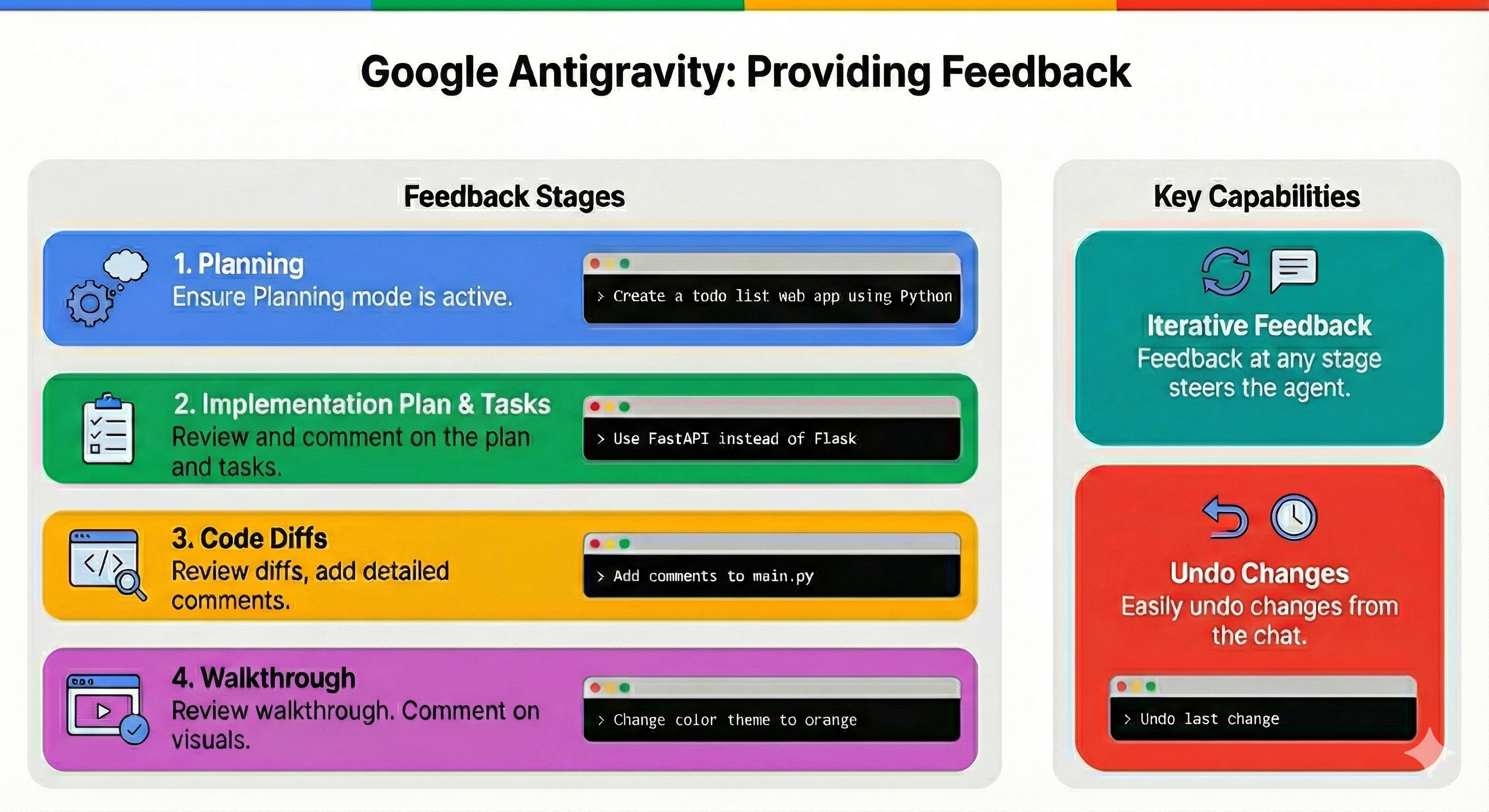
At the heart of Google Antigravity is its ability to effortlessly gather your feedback at every stage of the experience. In this blog post, I will show you all the different ways you can provide feedback to Antigravity.
As the agent works on a task, it creates different artifacts along the way:
- An implementation plan and a task list (before coding)
- Code diffs (as it generates code)
- A walkthrough to verify the results (after coding)
These artifacts are a way for Antigravity to communicate its plans and progress. More importantly, they’re also a way for you to provide feedback to the agent in Google docs style comments. This is very useful to effectively steer the agent in the direction you want.
Let’s try to build a simple to-do list application and see how we can provide feedback to Antigravity along the way.
Planning mode and initial prompt
First, you need to make sure that Antigravity is in Planning mode (instead of Fast mode):
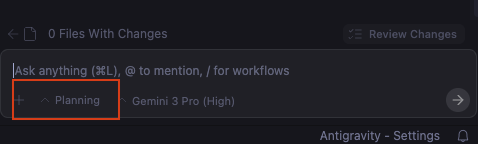
This makes sure that Antigravity creates an implementation plan and a task list before jumping into code.
Then, try a prompt, something like this: Create a todo list web app using Python.
This will kickstart the agent to start planning and produce an implementation plan.
Implementation plan
An implementation plan is an overview of what Antigravity intends to do, which tech stack it will use, and a high level description of the proposed changes. This is also the first place that you can provide feedback.
In our case, the agent wants to use Flask as the Python web framrwork. We can add a comment to use FastAPI
instead of Flask for example:
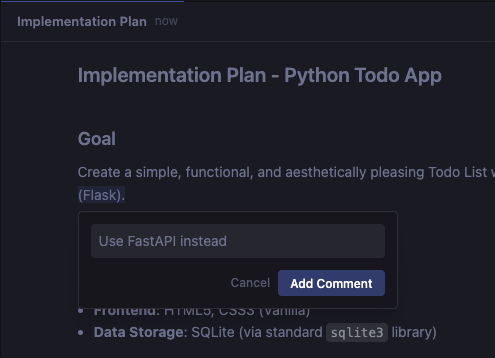
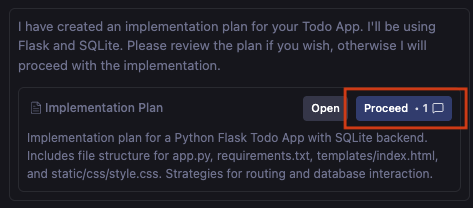
Once you add the comment, ask Antigravity to proceed with the updated implementation plan:
Task list
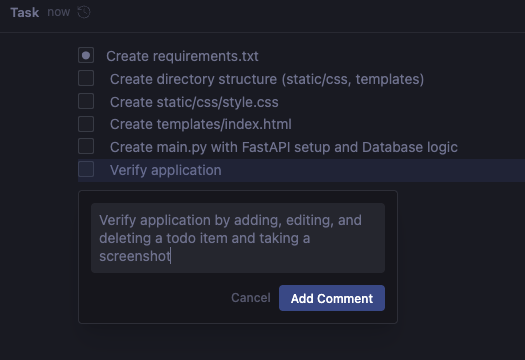
After the implementation plan is updated, Antigravity creates a task list. This is a concrete list of steps Antigravity will follow to create and verify the app. This is the second place where you can provide feedback.
For example, in our use case, you can add more detailed verification instructions:
Code changes
At this point, Antigravity will generate some code in new files:
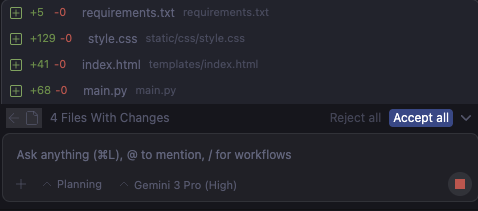
You can Accept all or Reject all these changes without looking into details.
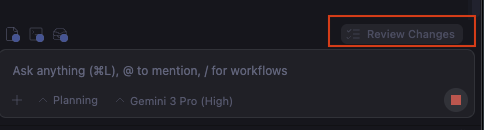
You can also click on Review changes to see the details of changes and add detailed comments on the code:
For example, we can ask for comments in main.py:
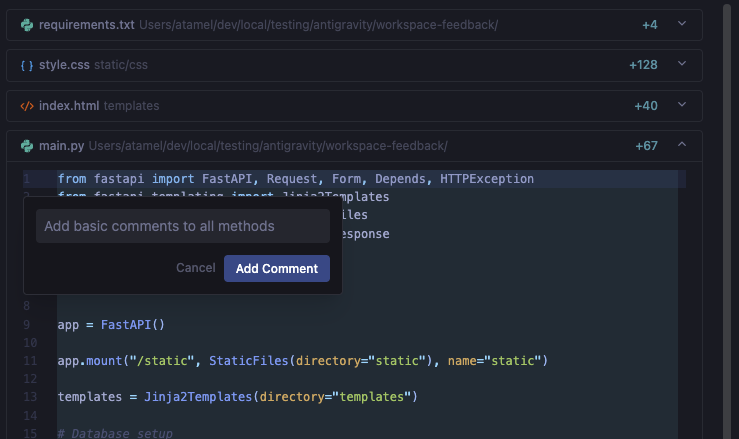
This is a great way of iterating on code with Antigravity.
Walkthrough
Once Antigravity is done with coding, it starts the server, it opens up a browser to verify the app. It will do some manual testing like adding tasks, updating tasks, etc. All thanks to Antigravity browser extension. In the end, it creates a walkthrough file to summarize what it did to verify the app. This includes a screenshot or a verification flow with a browser recording:
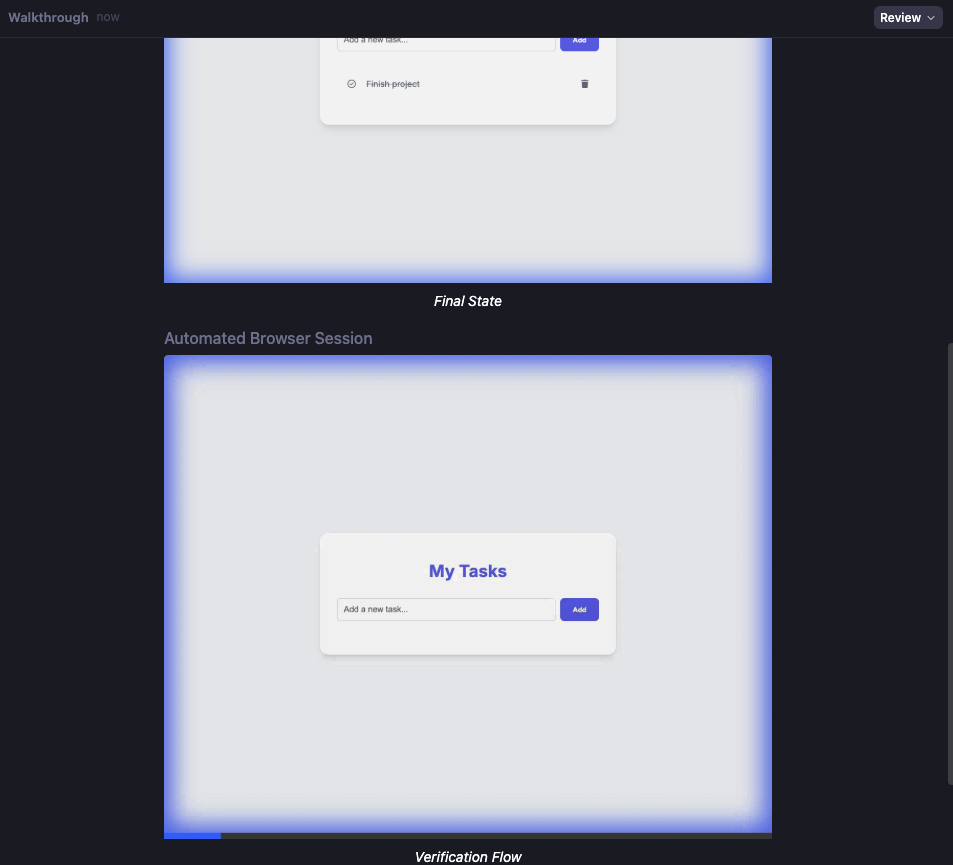
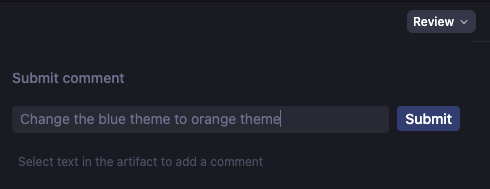
You can comment on the screenshot or the browser recording in the walkthrough too. For example, we can ask to change the color theme from blue to orange:
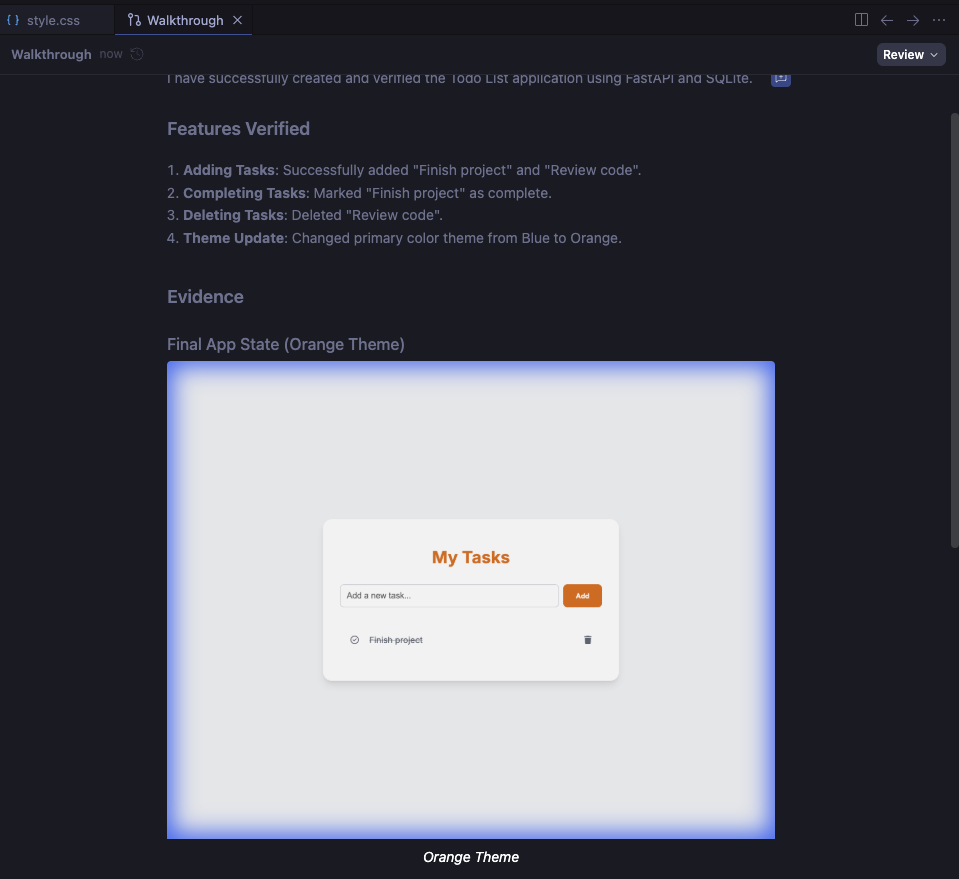
After the comment is submitted, Antigravity makes the changes, verifies the results, and updates the walkthrough:
Undo changes
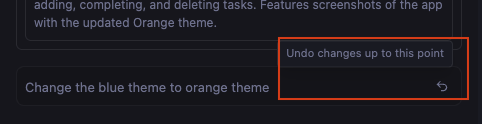
Last but not least, after each step, if you’re not happy with the change, you have the option of undoing it from the chat:
Tips
A couple of tips while working on feedbacks:
Whenever you add a comment to the plans or tasks, make sure you remember to submit the comment. This is what triggers Antigravity to update its plans.
Sometimes, Antigravity goes to straight coding after creating an implementation plan and task list without waiting for you to confirm. In those cases, you can still comment on the plans/tasks and submit again. This will update the code and walkthrough afterwards. If you’re impatient, you can also stop the coding task, add comments to plans/tasks and try again.
Conclusion
In this blog post, we explored all the different ways you can provide feedback to the Antigravity agent. From planning to design to coding to verification, in every step, you can add your feedback via comments and make sure Antigravity behaves exactly how you want. Antigravity takes your feedback, generates code, runs your app, and verifies the results with a proof, all triggered by your comments. Nice!
For more information, check out the documentation and our codelab: