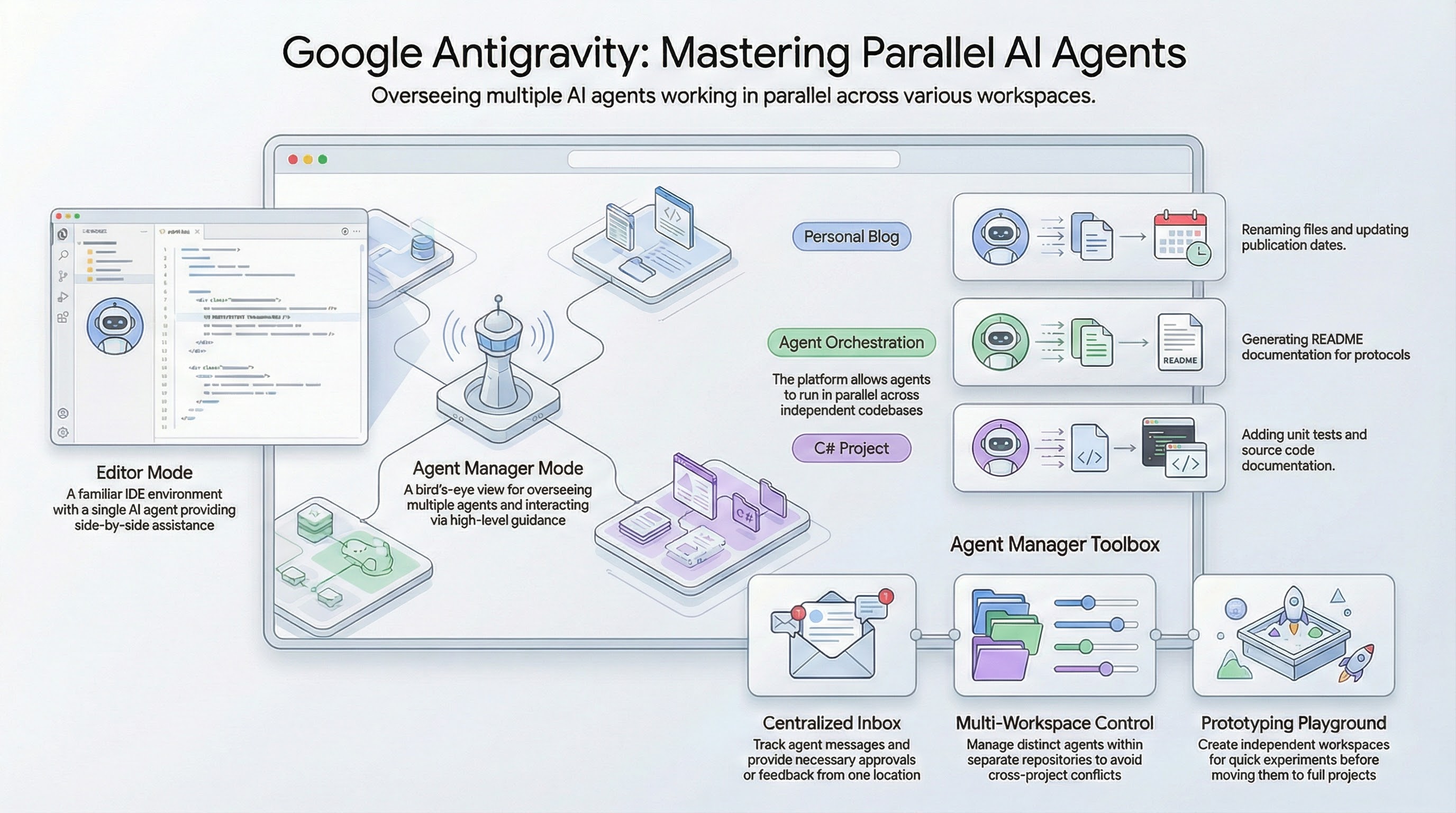
Google Antigravity transforms your regular IDE into an agentic development platform. In my previous blog posts, I showed some of the unique features of Antigravity compared to a regular IDE. In today’s blog post, I’ll talk about what makes Antigravity truly unique: Its ability to spin up and manage multiple agents.
Antigravity modes
Antigravity has two modes: Editor and Agent Manager.
Editor is your familiar IDE with an agent on the side to help you with tasks. You can read more about it in my previous blog post Google Antigravity Editor - Tips & Tricks and learn how to provide feedback to the agent in Provide Feedback to Google Antigravity and how to customize it in Customize Google Antigravity with rules and workflows.
Editor is powerful and familiar, but what sets Antigravity apart is the Agent Manager.
Agent Manager, as the name suggests, is a higher-level view into the work agents are doing under your guidance. You can work across multiple workspaces, oversee multiple agents simultaneously, and interact with your codebase primarily through the agent, rather than by writing code directly. As agents and models continue to improve, this bird’s-eye view will become the primary entry point for all your work.
Let’s take a look at a concrete example of how the Agent Manager is useful.
Understanding the Agent Manager
When you first open the Agent Manager, you’re greeted with this view:
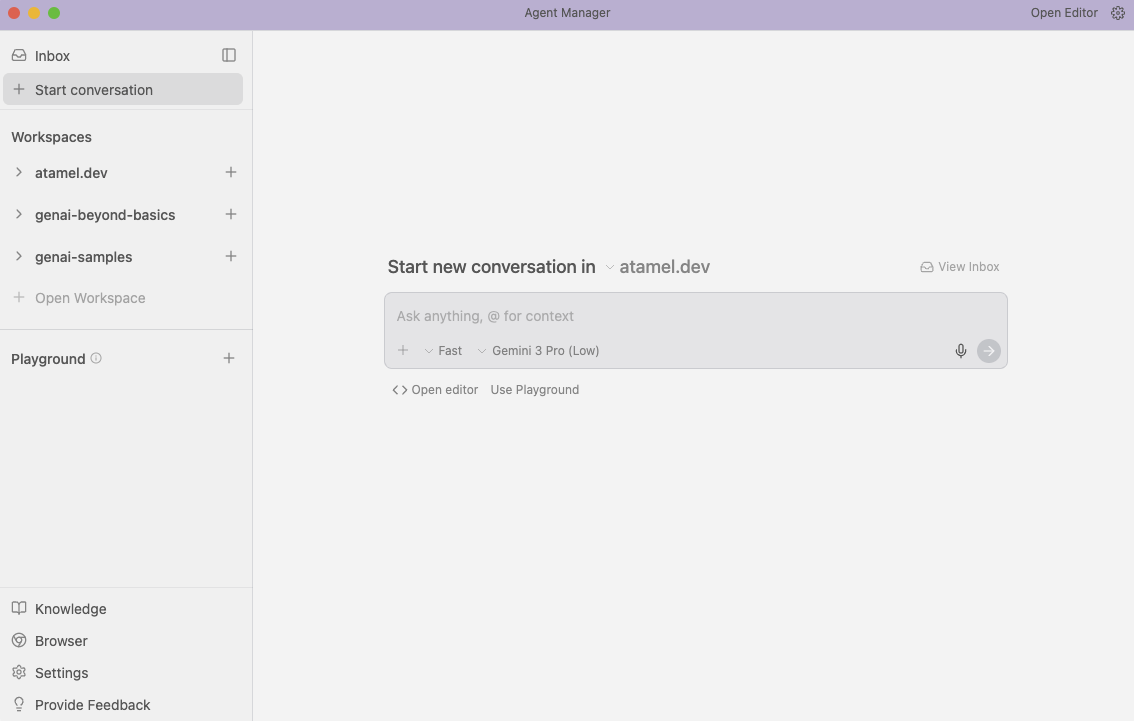
Inbox: This is where you can keep track of the latest messages from each conversation with the agents. It helps you to stay updated on the latest approvals or feedback needed from your side.
Start conversation: This is where you can initiate a conversation with an agent in a workspace.
Workspaces: This section allows you to interact with multiple workspaces and agents working within them. Ideally, you’d have one agent per workspace to avoid conflicts between agents. However, it’s still possible to have multiple agents working on the same workspace.
Playground: This is an independent workspace for quick prototypes that does not require importing a full workspace. You can move playgrounds into a workspace later.
Working with multiple workspaces
Let’s now start some agents to work on workspaces in parallel. As you can see, I have added three of my workspaces to Agent Manager:
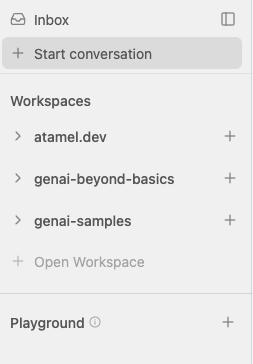
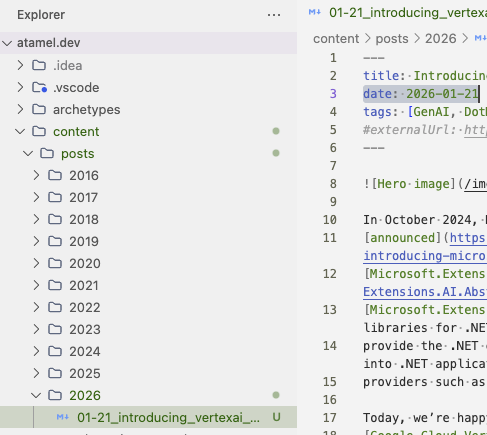
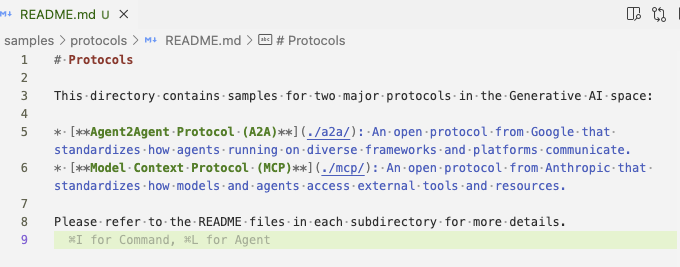
atamel.dev: Contains the code for my personal blog. I have a blog post scheduled for January 19th; however, I want to publish it later, so I need to change the file name and the publish date within the blog post.genai-beyond-basics: This repo contains some A2A and MCP samples in the protocols folder. I want to add aREADME.mdexplaining what these samples are about.genai-samples: This repo has a C# sample inProgram.cs, but it lacks documentation and unit tests.
Parallel agents in action
Let’s now start three parallel agents in three workspaces to do some work for us. I will start conversations in each workspace and ask the following:
In
atamel.dev:My latest blog post is scheduled to be published on the 19th of January but I need to move it to the 21st. Can you rename the blog post file and also the date in the markdown?`In
genai-beyond-basics:Can you add a simple README.md to samples/protocols explaining what the two samples are about?In
genai-samples:Can you update the Program.cs in Google.Cloud.VertexAI.Extensions.Samples project with some basic documentation and also add some basic unit tests?
As soon as I specify the prompts, the agents start working:
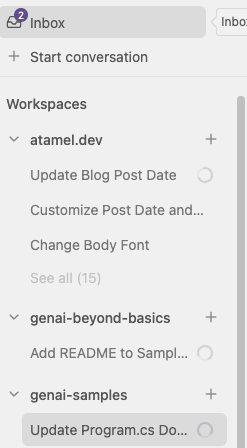
Under the Inbox, I can see the pending actions waiting for my feedback:
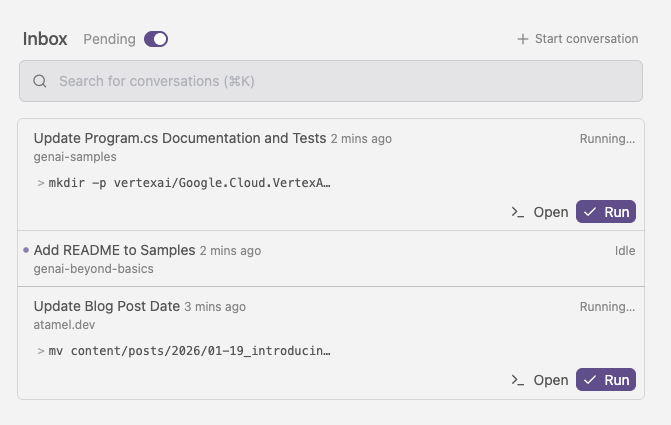
I then approve the pending actions so the agents can continue.
Verifying the results
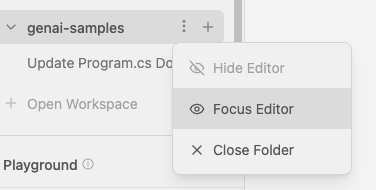
At any point, I can switch to the editor by selecting Focus Editor from the workspace:
In atamel.dev, I can see that the blog post file and the date have been updated:
In genai-beyond-basics, a new README.md has been created explaining the samples:
In genai-samples, the code is updated and a new unit test project has been created by Antigravity:
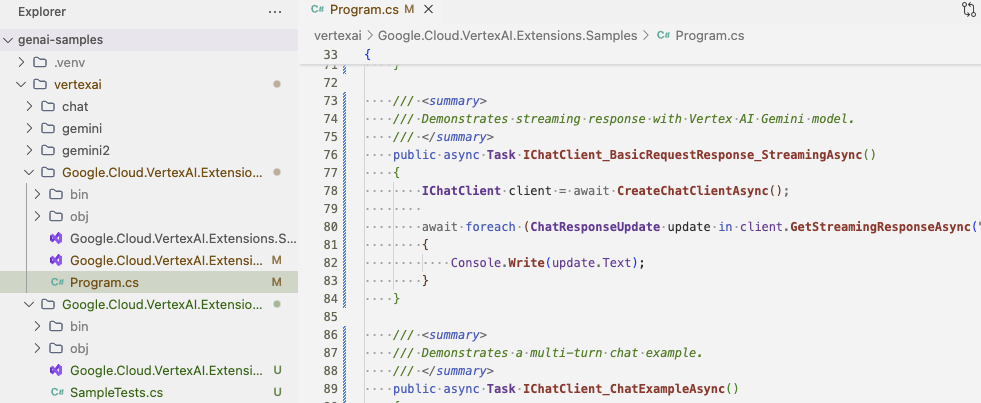
Although the unit tests failed initially, I got them working after a few iterations through the chat. Great!
Conclusion
In this blog post, we explored how to run multiple agents across multiple workspaces. While I personally prefer to handle one task at a time and I’ll most likely stick to the editor, it’s good to know that Antigravity offers a higher-level way of working across workspaces.
For more information, check out the documentation and our codelabs:
- Documentation: Google Antigravity
- Codelab: Getting Started with Google Antigravity
- Codelab: Building with Google Antigravity