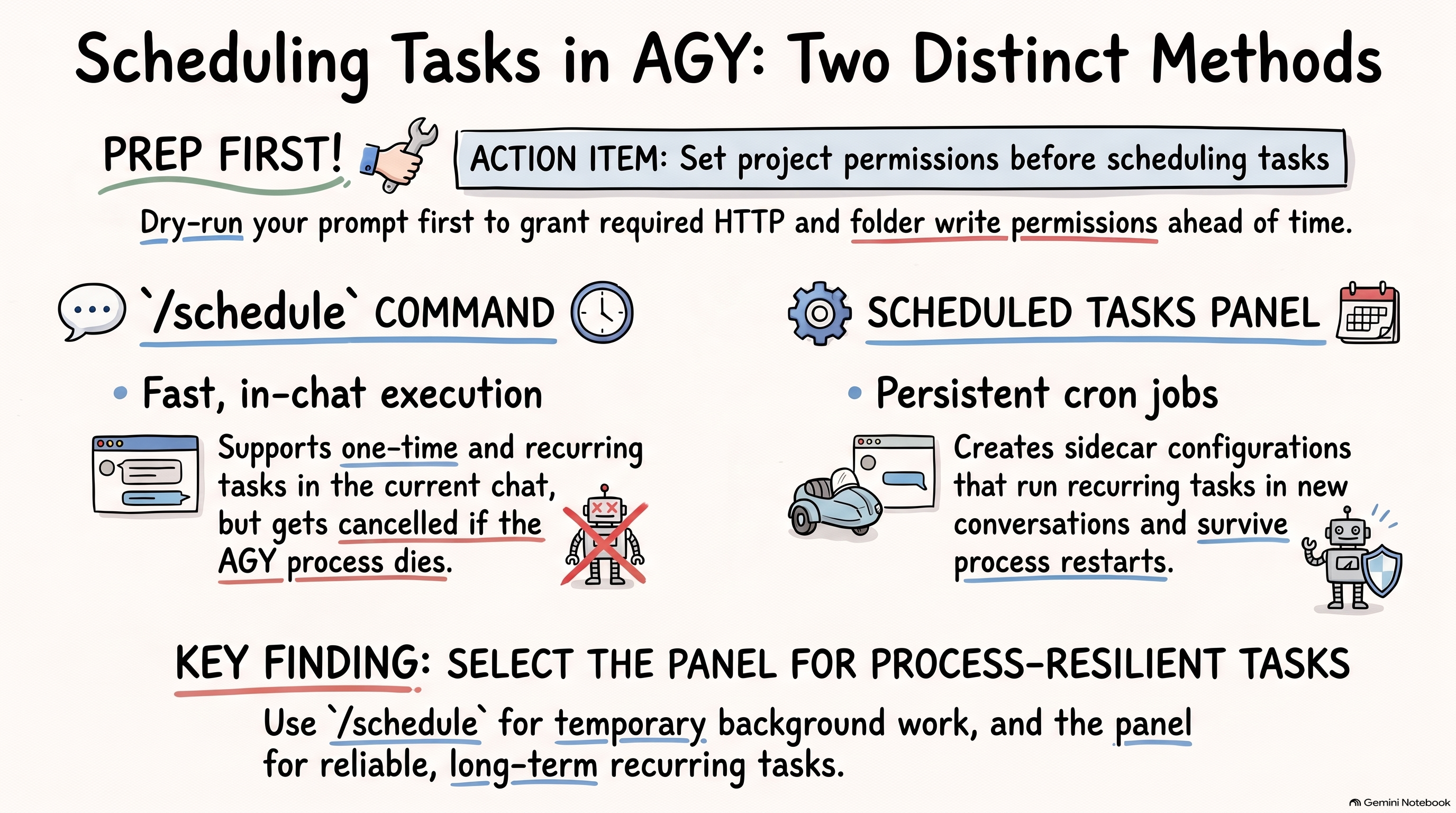
Antigravity (AGY) allows you to schedule instructions to run on a recurring schedule or one-time timer. However, it has two different ways of scheduling that results in two different behaviors.
In this post, I’ll share my learnings on scheduling tasks in AGY and the gotchas to look out for.
Two ways of scheduling tasks in AGY
In AGY, there are two ways of scheduling tasks:
- With the
/schedulecommand in the chat. - With the Scheduled Tasks panel on the top left.
While both let you schedule tasks, they are completely independent from each other and the way they schedule and display tasks are completely different as well. This can be confusing, so let’s look into each in more detail to clear up the confusion.
Permissions for scheduled tasks
Before we dive into how to schedule tasks, it’s important to note that scheduled tasks require the same permissions that you’d grant to the agent in your own conversations.
For example, let’s say you want to schedule this task:
Get the current weather in London from https://open-meteo.com/ and save it to a timestamped file
This prompt requires that the agent has write access to the project folder and it also has HTTP access to the Open-Meteo API. Normally, you’d allow these permissions as you go along at the conversation or project level but in scheduled tasks, you need to add these permissions ahead of time.
💡 Tip
Before scheduling a task, dry run the task in a project and add all the necessary permissions at the project level to make sure the scheduled task will run without permissions issues later.
In this case, I created a project and ran the prompt in the chat. I got the following prompt to allow HTTP access:
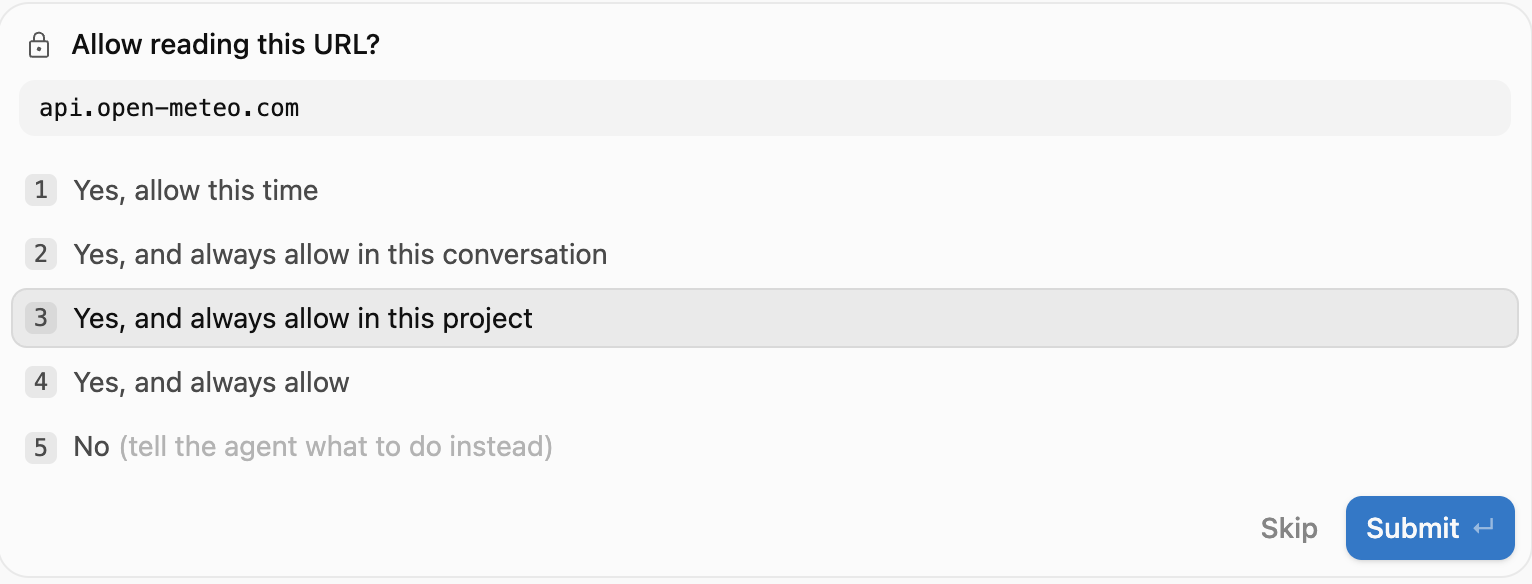
I allowed it for the project and now, I’m ready to schedule this prompt as a task in this project.
/schedule command
The first way to schedule tasks in AGY is with the /schedule command in a
conversation. This command allows you to schedule one-time or
recurring instructions as background tasks in the same conversation. As
these background tasks are scheduled and executed, you can continue chatting
with the agent in the same conversation as usual.
One-time task
For one-time task, you can try a prompt like this:
/scheduleIn 1 minute, get the current weather in London from https://open-meteo.com/ and save it to a timestamped file in the current folder.
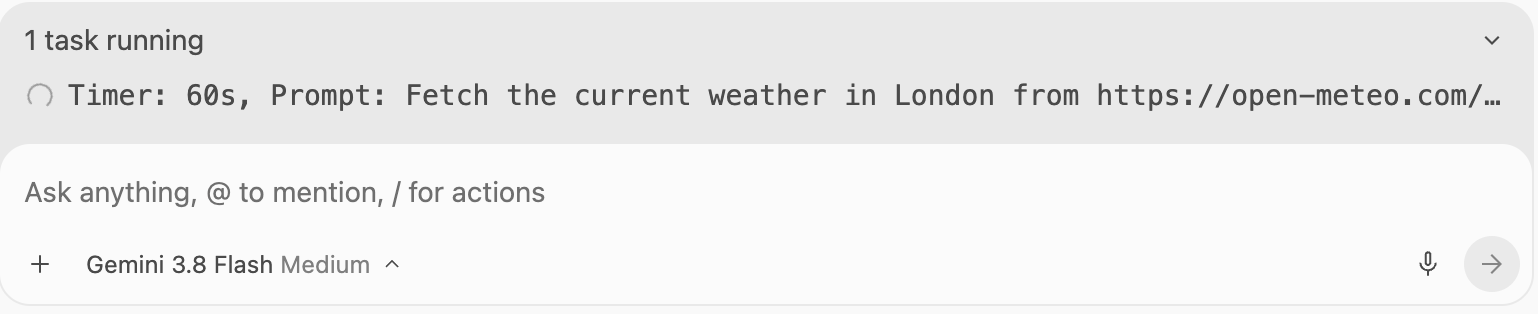
First, you’ll see a background task scheduled in the chat:
You’ll also see the same background task on the right panel:
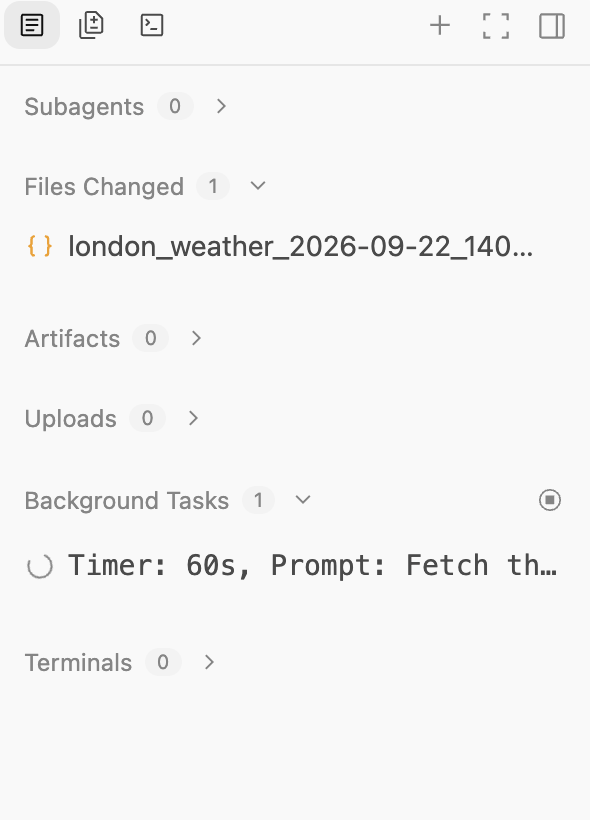
If you click on the background task on the right panel, you can also see the logs of the task which is quite useful:
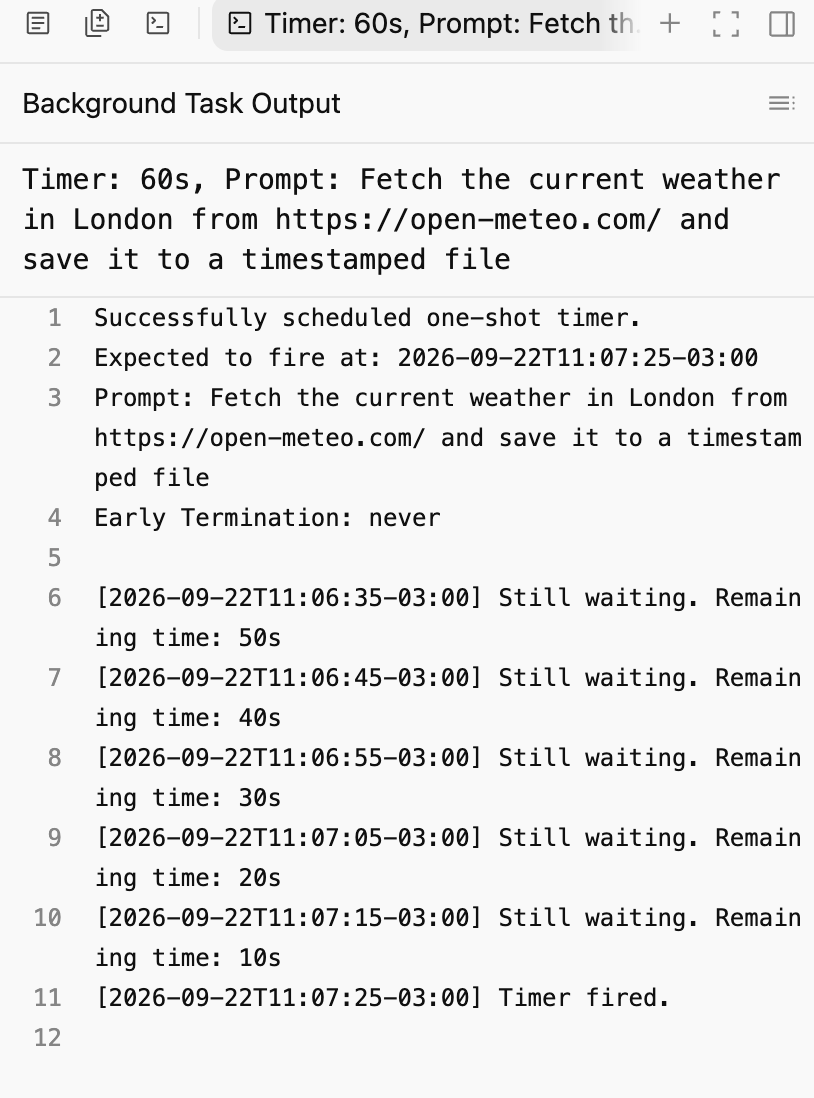
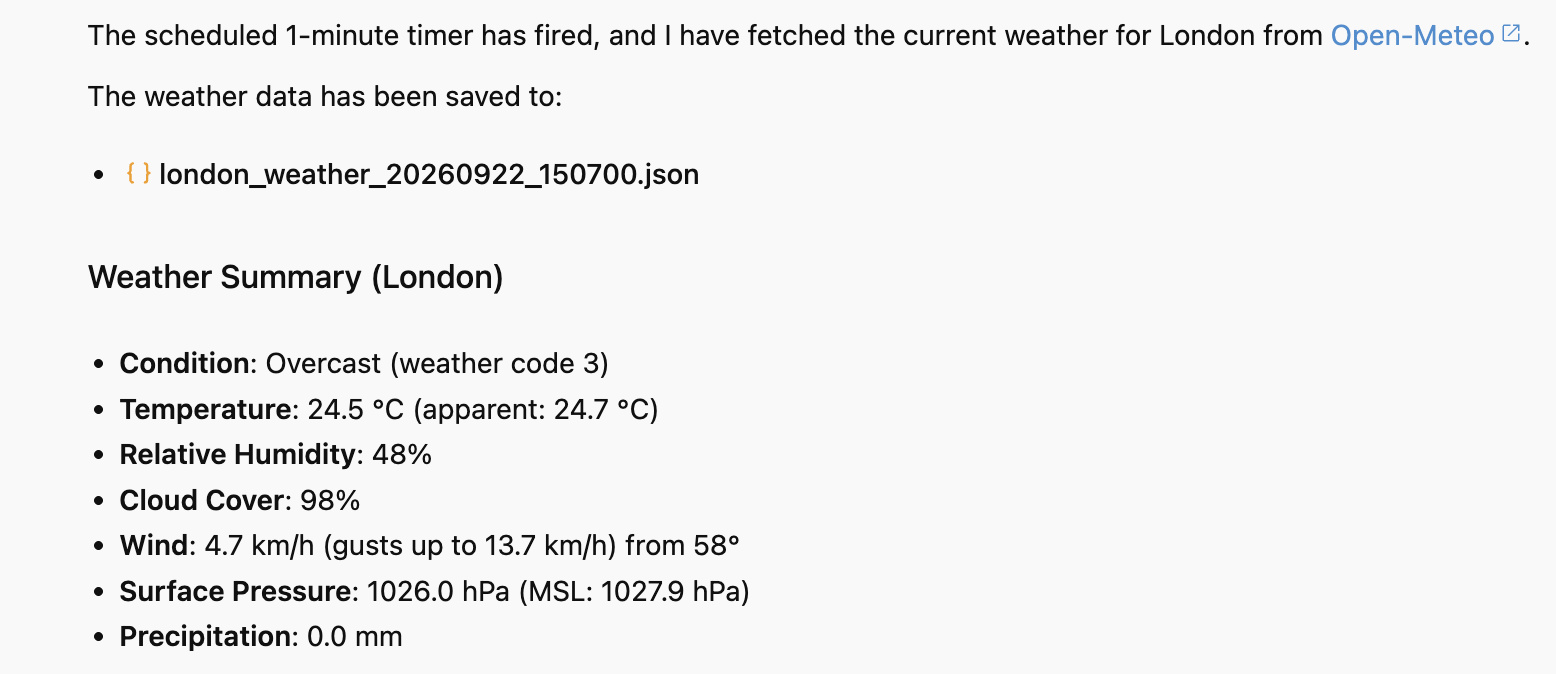
Once the task is done, you’ll see updates in the chat and also the file created in the project folder:
Recurring task
For a recurring task, you can try this:
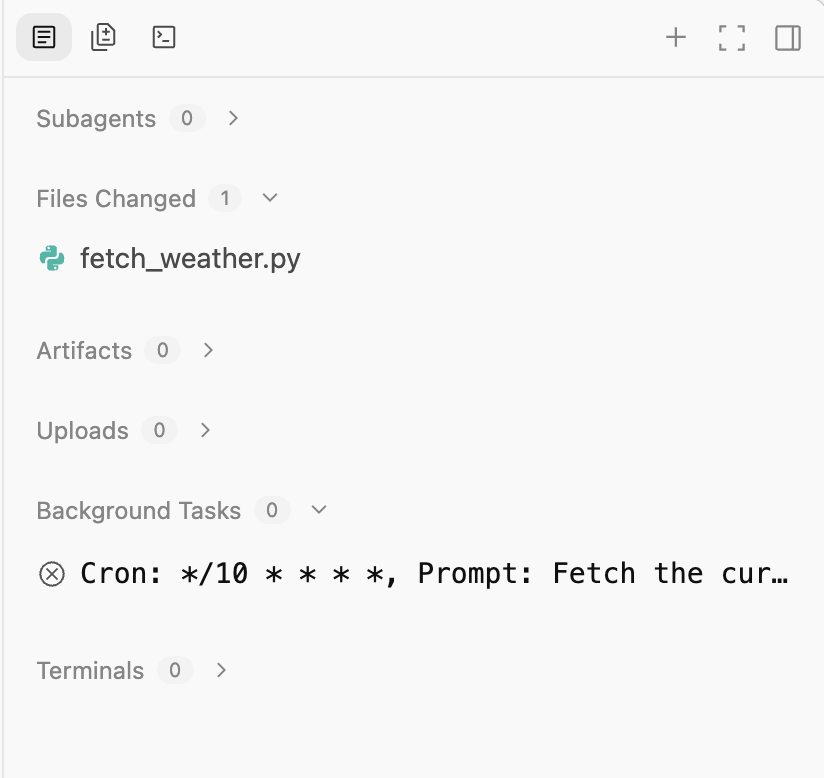
/scheduleEvery 10 minutes, get the current weather in London from https://open-meteo.com/ and save it to a timestamped file
You should see a similar background task in the chat and on the right hand side panel:
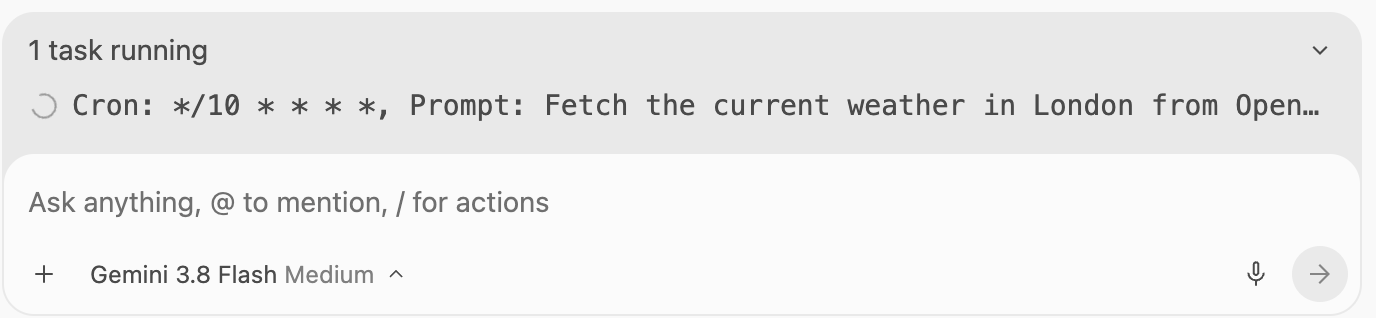
Similar to the one-time task, you can click on the background task to see the logs.
Every time the task runs, you’ll see updates in the chat and also the file created in the project folder.
If you close AGY desktop app and come back later, the background task will still be there and continue running at the scheduled interval.
However, if you further kill the AGY process like this:
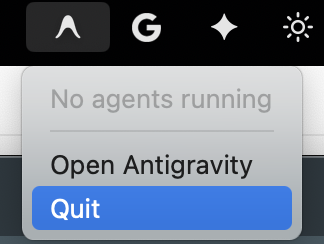
The background task will be cancelled:
⚠️ Warning
Recurring tasks scheduled with
/schedulecommand are cancelled if the AGY process is killed and you need to reschedule them.
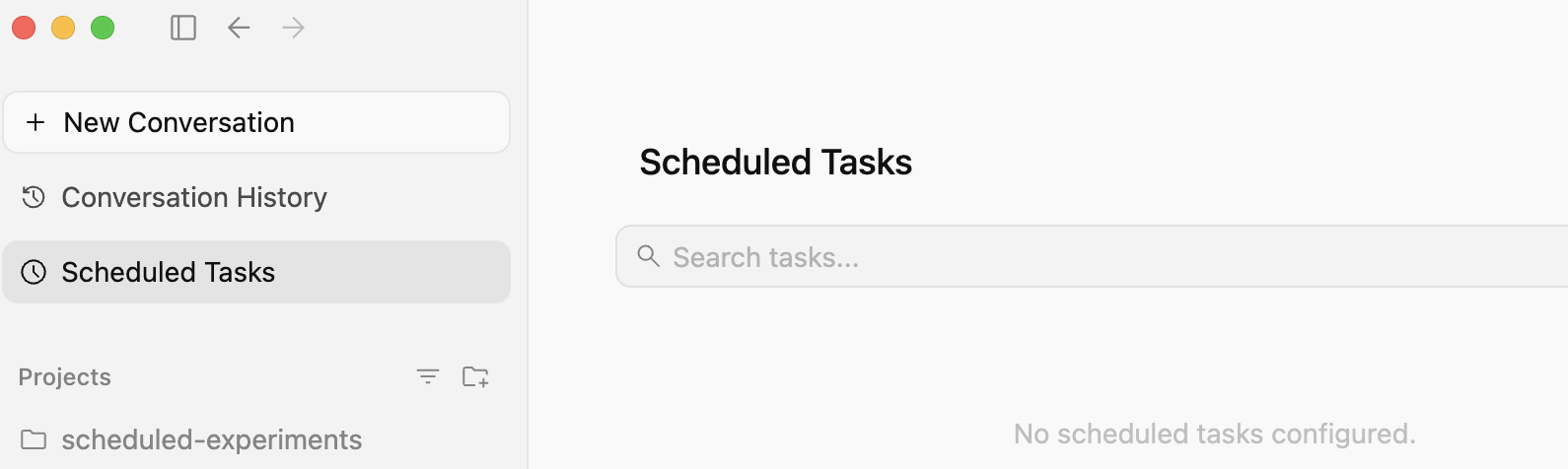
Furthermore, you won’t see one-time or recurring tasks scheduled with the /schedule command
in the Scheduled Tasks panel on the top left:
⚠️ Warning
It’s confusing that tasks scheduled with
/schedulecommand in a conversation do not show up on the Scheduled Tasks panel.
Scheduled Tasks panel
The second way to schedule tasks in AGY is with the Scheduled Tasks panel
on the top left but it’s different from the /schedule command in a number of
ways:
- You can only schedule recurring tasks with a cron schdule (i.e. no one-time tasks).
- The scheduled tasks create their own conversation (i.e. not part of an existing conversation).
- The scheduled tasks are actually scheduled sidecars with the added benefit of surviving AGY process restarts.
Let’s create the same example as a scheduled task and look at the differences.
Go to the Scheduled Tasks panel and create a new task as follows:
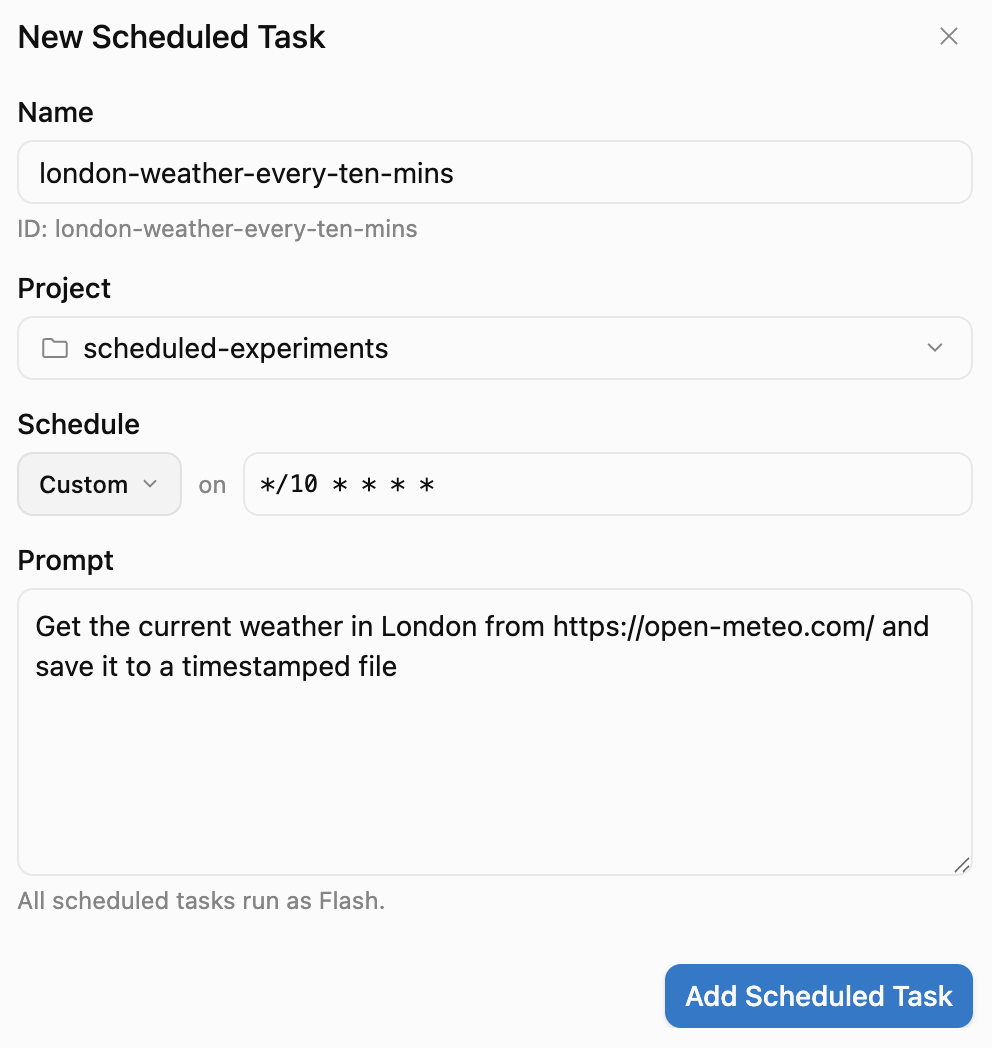
Once you create the task, you’ll see it listed under Scheduled Tasks panel.
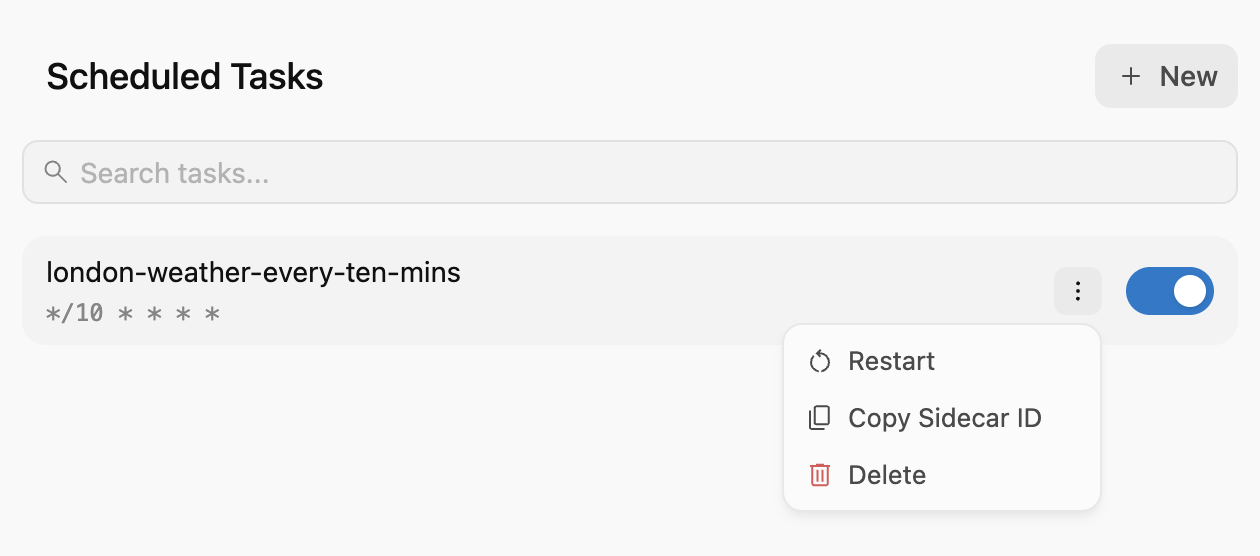
You can also get the hint that it’s actually a sidecar. You can verify this by
realizing that a new sidecar file is created in ~/.gemini/config/sidecars/london-weather-every-ten-min/sidecar.json:
{
  "builtin":  "schedule",
  "args":  [
    "*/10 * * * *",
    "agentapi",
    "new-conversation",
    "Get the current weather in London from https://open-meteo.com/ and save it to a timestamped file"
  ],
  "display_name":  "london-weather-every-ten-mins"
}
The sidecar is also enabled in ~/.gemini/config/config.json:
{
  "sidecars": {
    "london-weather-every-ten-mins": {
      "enabled": true,
      "projectId": "17bc69c1-0072-48b5-9b44-180b5e1c8694"
    }
  },
  ...
After 10 minutes, you should see the sidecar creating a new conversation and running the task. You’ll see updates in the chat and also the file created in the project folder.
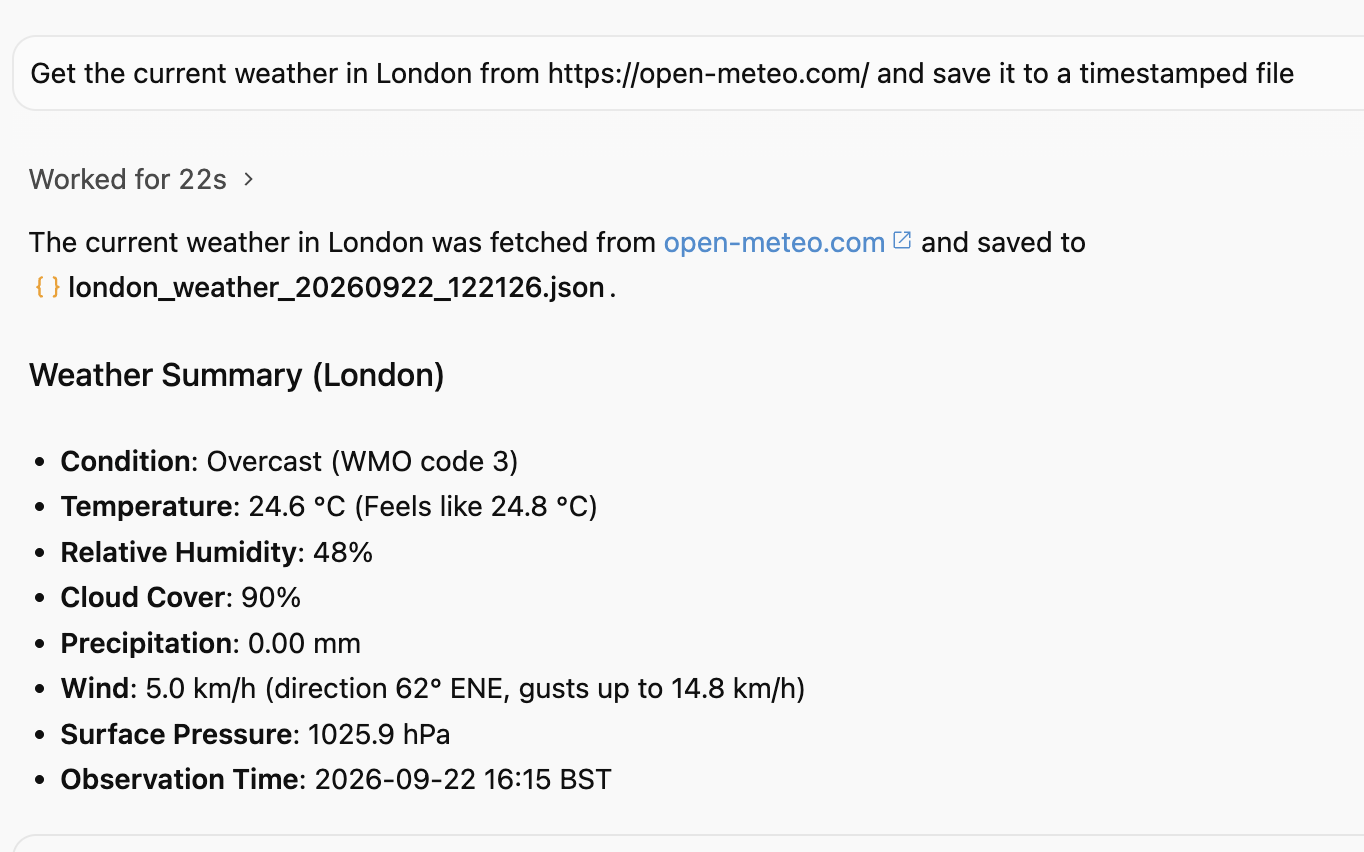
If you close AGY desktop app and come back later, the scheduled task will still be there and continue running at the scheduled interval.
If you kill the AGY process, the sidecar will also be killed and you can verify
this by checking the logs in ~/.gemini/antigravity/sidecar_data/london-weather-every-ten-mins/logs:
ERROR: logging before google.Init: I0922 12:24:50.517034      39 schedule.go:99]
[schedule] Scheduler shutting down cleanly on signal: interrupt
However, if you start AGY app again, a new sidecar process will start up and will continue running the task at scheduled interval.
 [schedule] Next execution scheduled in 20s (at 2026-09-22 15:30:00 UTC),
 will run by 2026-09-22 15:31:33 UTC
ℹ️ Note
If you want scheduled tasks to survive restarts, it’s better to use the Scheduled Tasks panel.
Summary
In this blog post, we’ve looked at two ways to schedule tasks in AGY. Here’s a summary of the key differences:
| Method | Recurring or one-time? | New Conversation? | Where to check | Survives AGY restart? |
|---|---|---|---|---|
/schedule command | Recurring & One-time | No | Chat panel | No |
| Scheduled Tasks panel | Recurring only | Yes | Scheduled Tasks panel | Yes |
See also
- Antigravity Plugin Marketplace in Action: Auditing My Talk Slides with the Google Slides Plugin
- Testing and Serving A2A Agents from the Terminal with A2A CLI
- Google Chat Unread Messages Brief with Workspace Studio and Gemini
- Setting Up an Antigravity Workspace for Multiple Conversations
- 6 Years of Tech Debt, 1 Prompt: Modernizing a Legacy App with Gemini 4